Part 1 · FDBK
Workspace dashboard
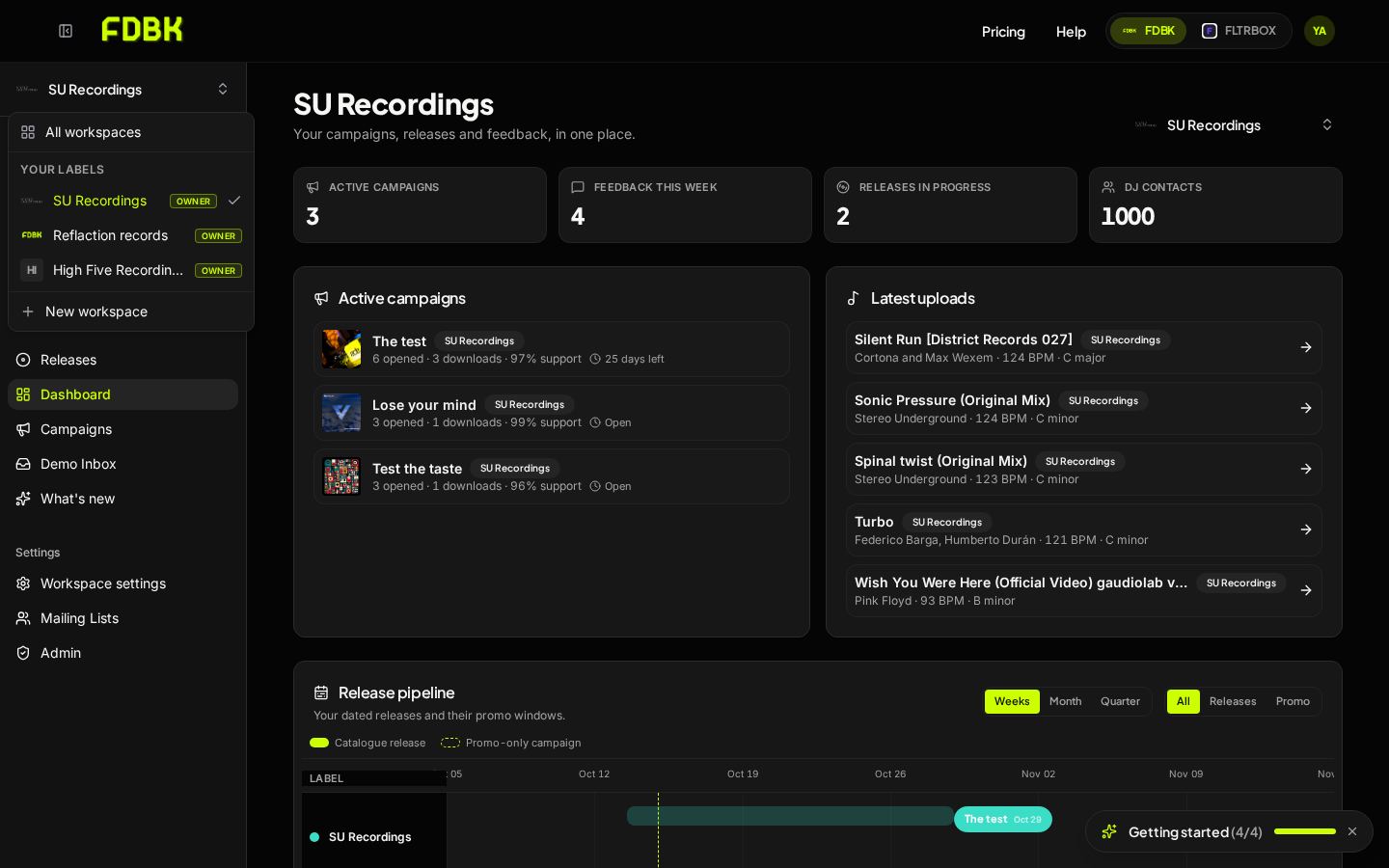
Your home base. Each label gets its own workspace, and the Dashboard shows only that label's campaigns, uploads and releases.
- 1
Create a new workspace
Open the workspace switcher at the top left and choose New workspace. Workspaces are free and unlimited on every plan, so open one for every label or imprint you run.
- 2
Switch between labels
The switcher lists every label you belong to. Pick one to open its Dashboard, or choose All workspaces to see every label together in one view.
- 3
Read the health metrics
The top cards show active campaigns, feedback this week, releases in progress and your contact count. Active campaigns lists each live promo with opens, downloads, support score and days left.
- 4
Follow the release pipeline
Every release moves through the same pipeline: upload tracks, create a release with a date, build a campaign, send the promo, then track post-release performance. The Release pipeline timeline shows each dated release (solid lime bar) and each promo-only campaign (dashed outline) with its promo window, on a weekly, monthly or quarterly view. Click any bar to open it. Latest uploads lists the newest tracks with BPM and key.
 12344
Part 2 · FDBK
Workspace settings
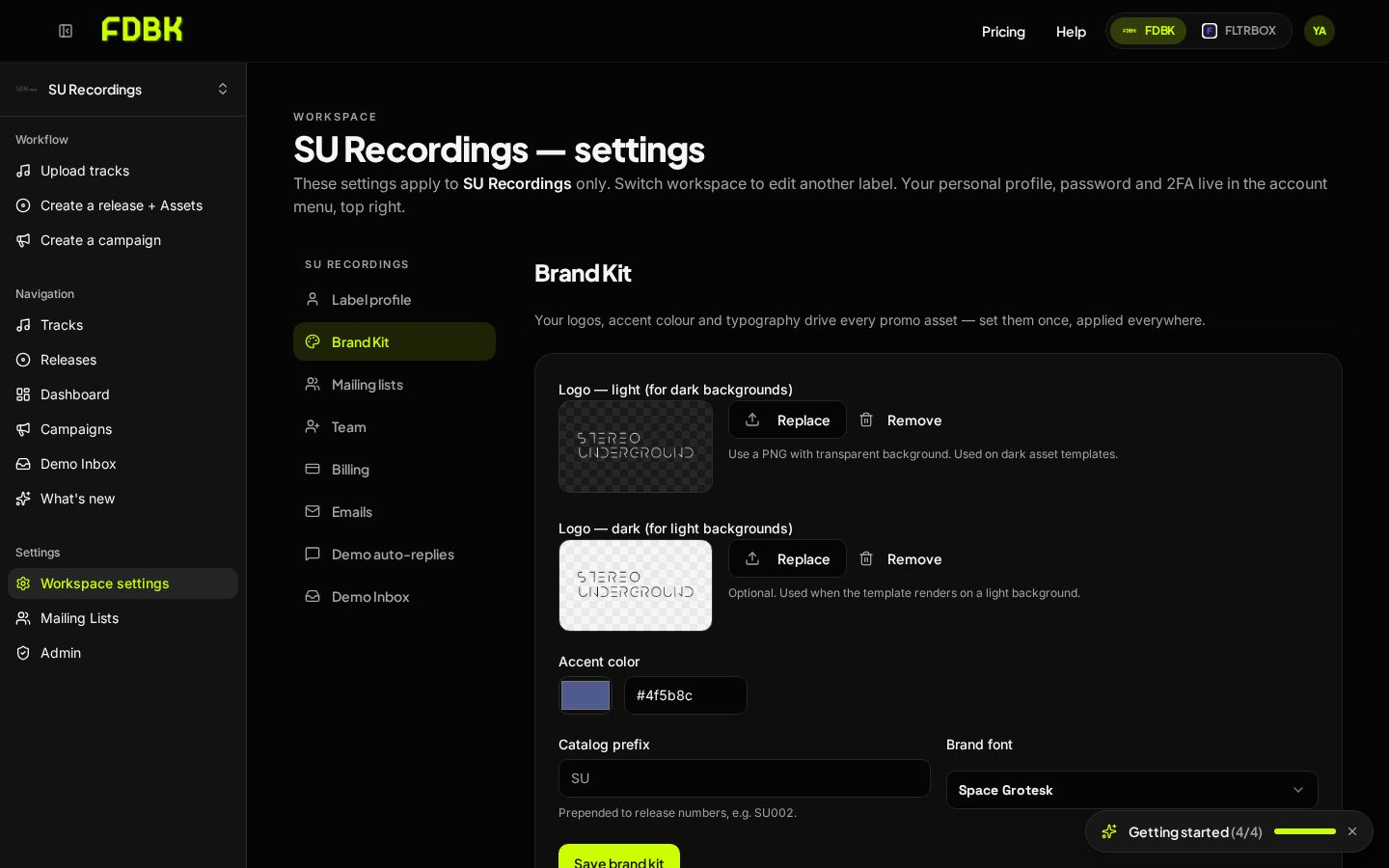
Settings apply to the selected label only. Switch workspace to edit another label.
- 1
Label profile
Label name, the Replies go to address (a real inbox you read) and the mailing address. The postal address is required in every promo email footer by anti-spam law.
- 2
Brand kit
Upload a light and a dark logo, set your accent colour, catalogue prefix and brand font. These are applied to every promo page, email and report graphic.
- 3
Team members
Invite teammates by email and choose Admin or Member. Admins send campaigns and manage members; members can build releases and campaigns.
- 4
Mailing lists
Import contacts with Import CSV, add single contacts, tag them and organise them into lists. Use Export to download, search and filter by status or tag, and open any row to edit a contact.
Tip: Settings save automatically. Look for Changes save automatically at the bottom of each panel.
 1234
Part 3 · FDBK
Catalogue and upload
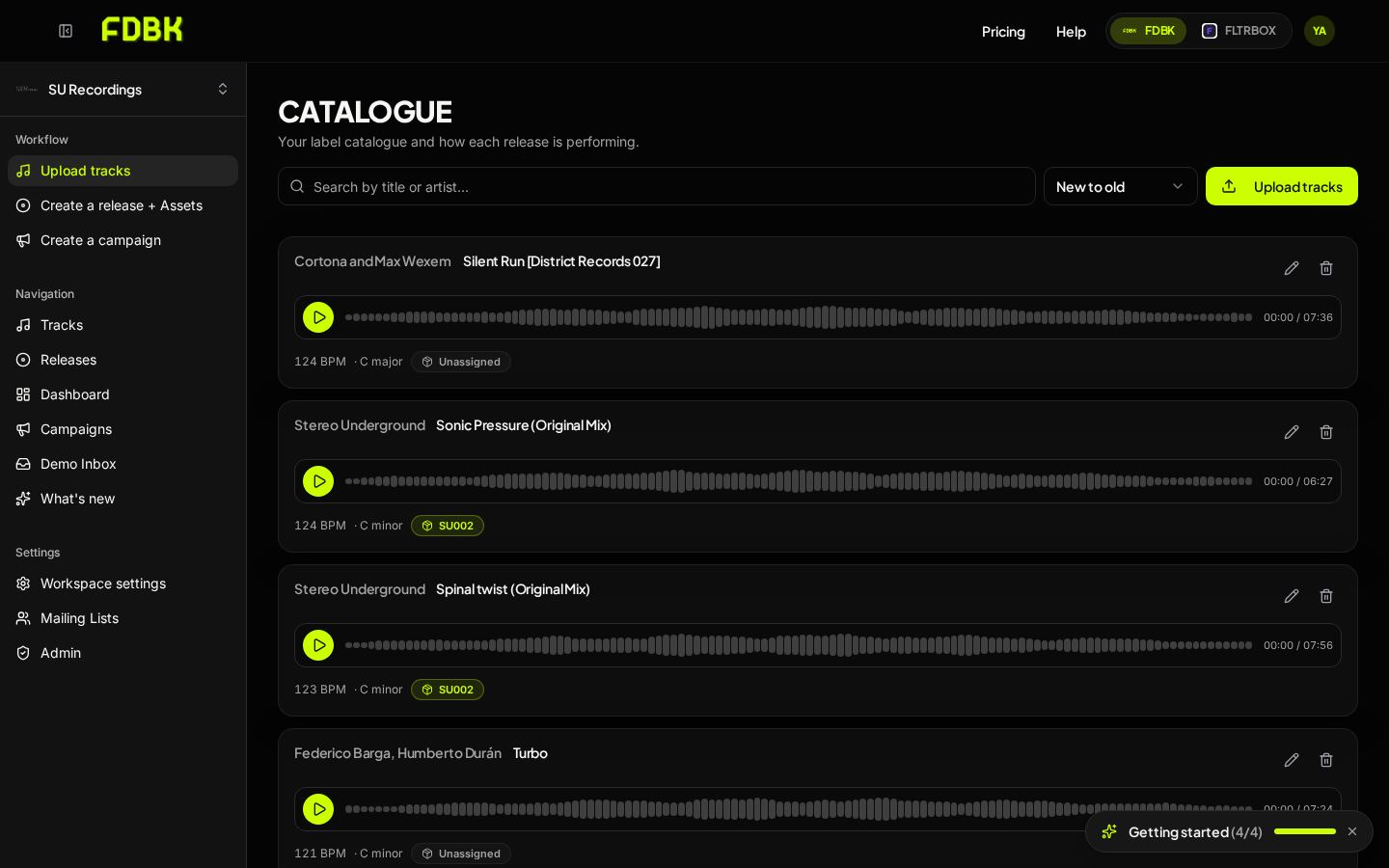
Every track you upload lives in the catalogue, ready to be added to releases and campaigns.
- 1
Upload tracks
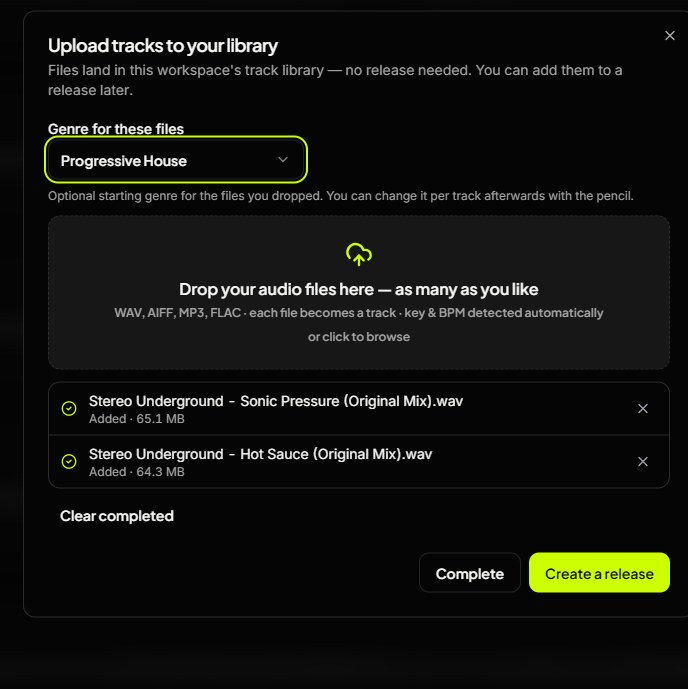
Click Upload tracks and drop WAV, AIFF, FLAC or high-res MP3 files. A streaming MP3 preview is created automatically. Large files upload one at a time with automatic retries.
- 2
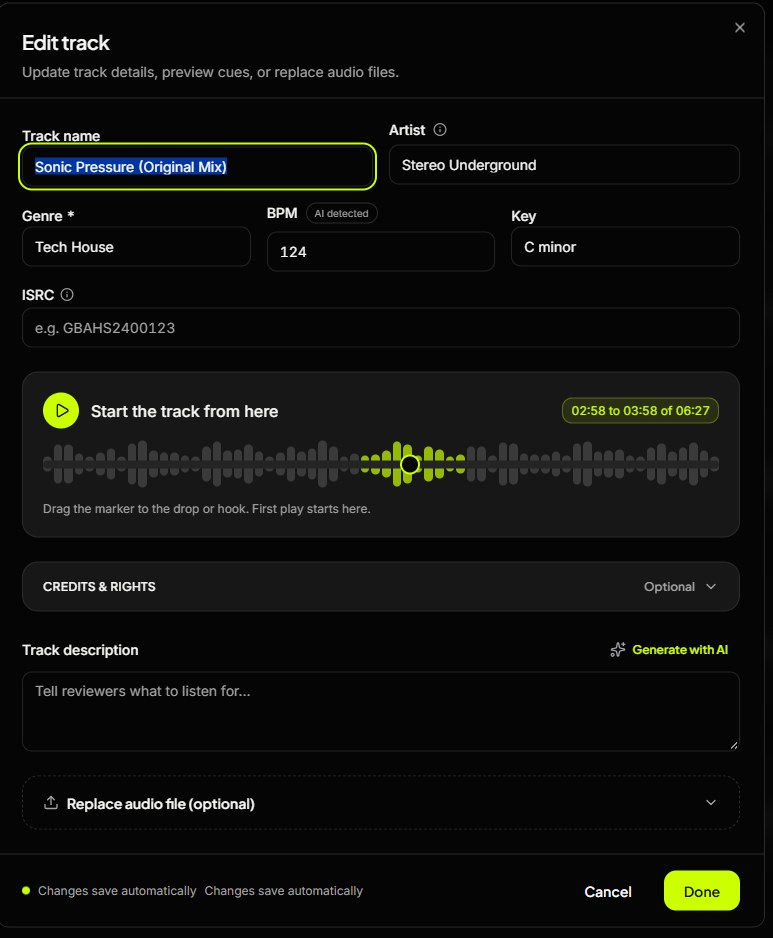
Fill in the details
Add title, artist, BPM, key, ISRC and genre. When you upload more than one track, a single Genre for all files picker appears to save time.
- 3
Set the 60-second snippet
Open a track's edit window and drag the range on the waveform to choose the 60 seconds DJs and Smart Link visitors hear first. Press play to audition it.
- 4
Complete or Create a release
When the upload finishes, choose Complete to return to the catalogue, or Create a release to turn the new tracks into a release and open its wizard straight away.
 123
 23
 124
Part 4 · FDBK
Releases and release assets
A release groups tracks with artwork, dates and everything you need to promote it.
- 1
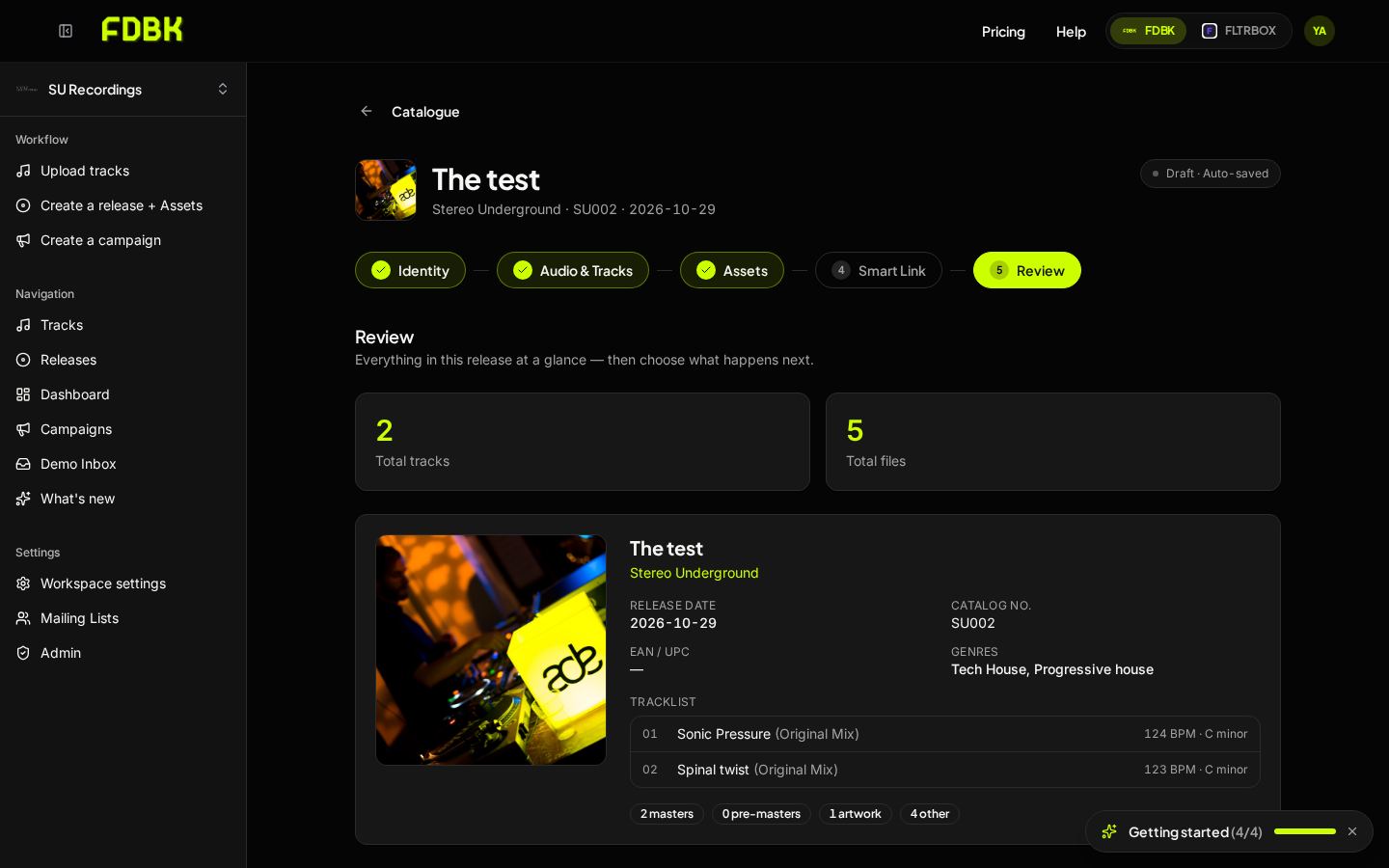
Identity and tracks
Set title, artists, catalogue number, release date and cover art. In Audio and Tracks, add tracks from the catalogue and drag them into order.
- 2
Press release generator
In Assets, press Generate to write pre-release and post-release text. Post-release copy includes your top Beatport chart position and Spotify playlists when available. Insert promo supporters into PR adds your supporter list.
- 3
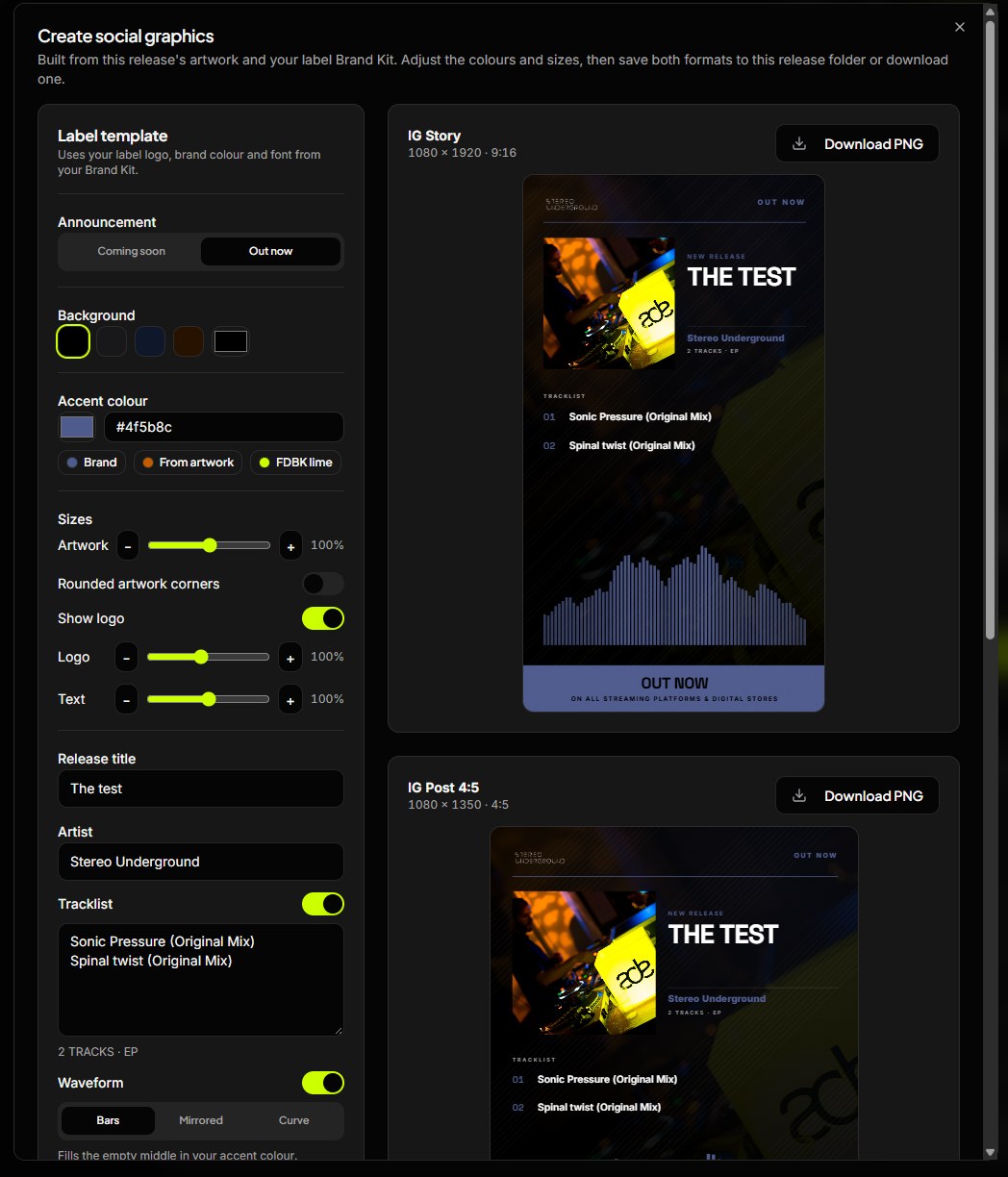
Social graphics
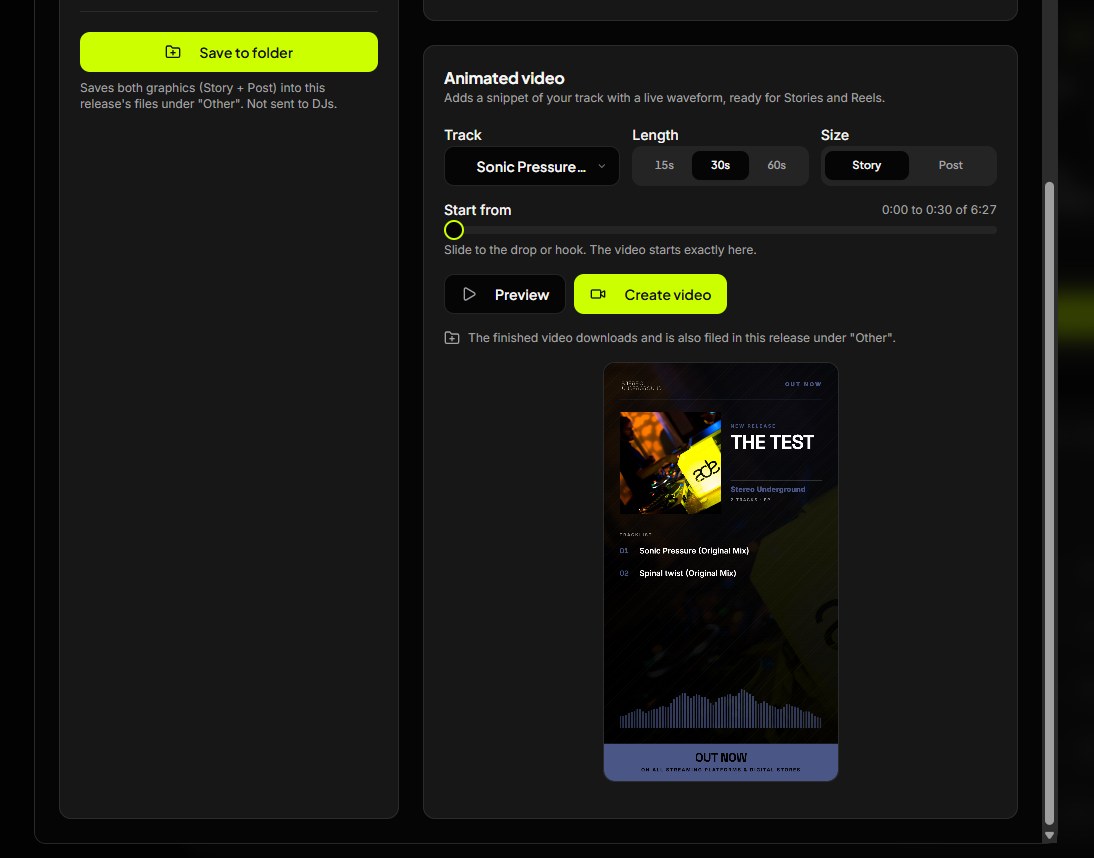
Create Coming soon and Out now visuals in your brand style, plus quote graphics from DJ feedback.
- 4
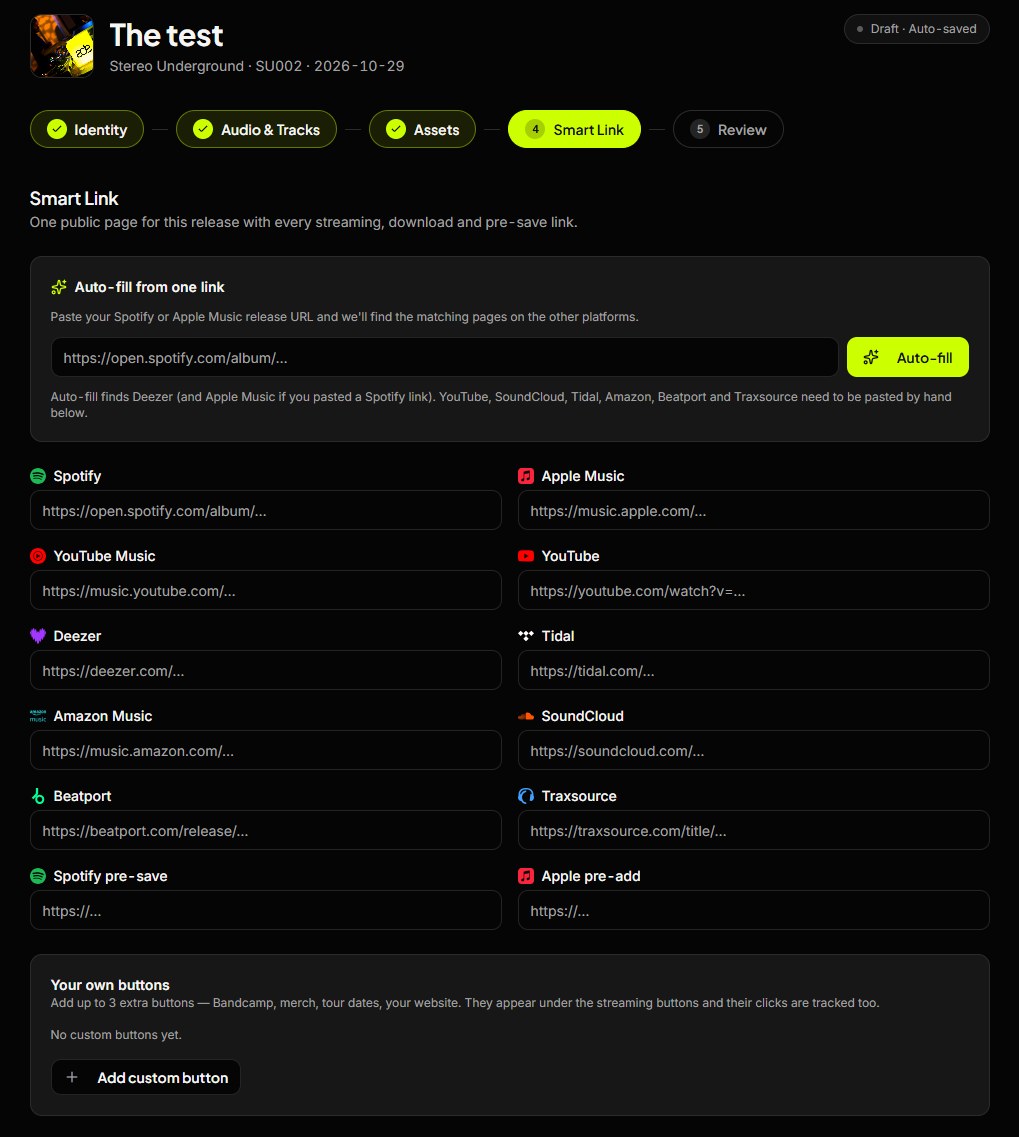
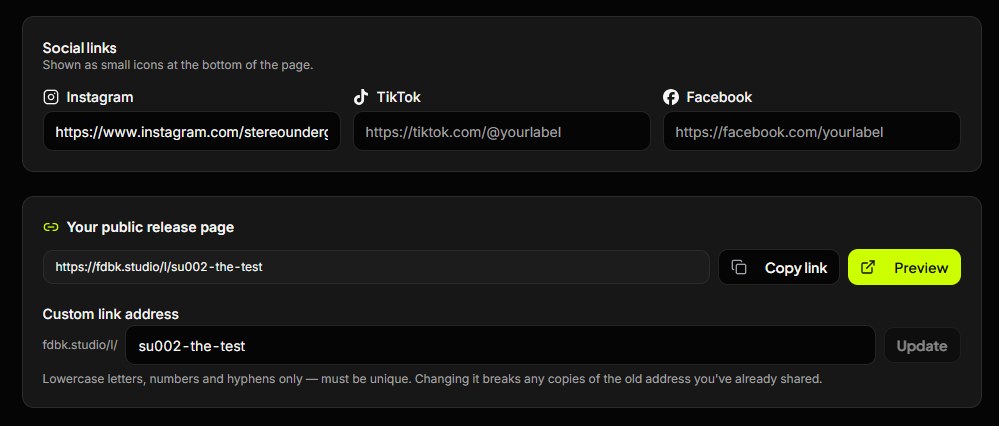
Smart Link editor and public page
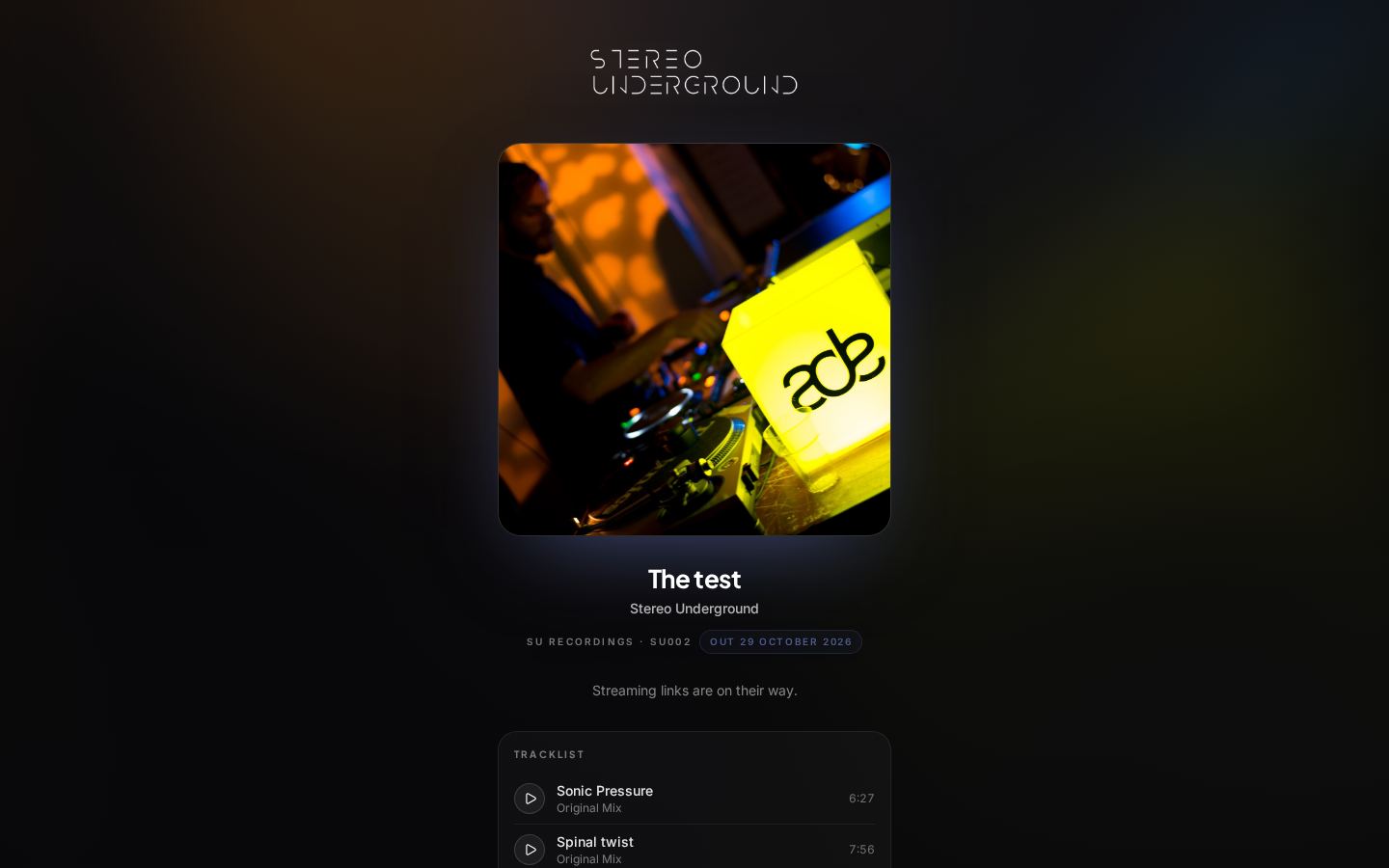
Add Spotify, Beatport and Apple Music links, reorder buttons and choose a custom address. Everything saves automatically. Use Preview to open the public page visitors see: release artwork, track list and your platform buttons. Audio starts at the saved snippet and stops after the 60-second preview. Share this public address with fans, not the private artist-assets link.
- 5
Share with the artist
Share Artist's view and download link gives the artist artwork, graphics and press texts without an account. Never tracks or pre-masters. You can revoke the link any time.
- 6
Download all
Download every asset as one ZIP for your own archive or distributor.
 1234
 3
 3
 4
 4
 4
Part 5 · FDBK
Campaign wizard
Four steps take a release from draft to DJ inboxes. Every step saves automatically.
- 1
Setup
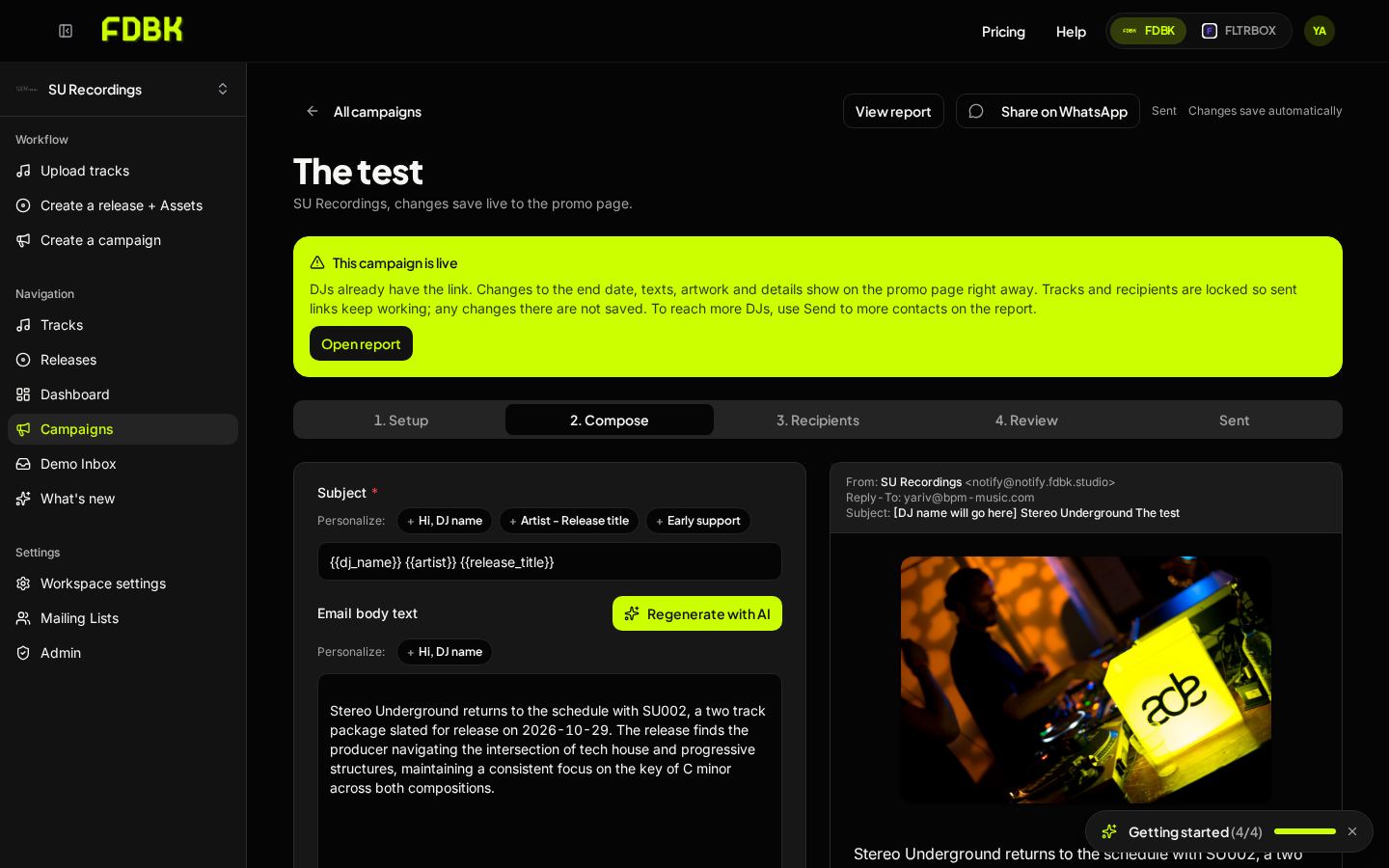
Release title, artists, catalogue number, release date and the availability window (when downloads close). If a campaign is already live, a lime warning reminds you that changes show on the promo page immediately.
- 2
Compose
Write the subject and Email body text. Insert {{Hi, Dj name}} to greet each DJ personally and {{artist_release}} for Artist - Release title. Press Auto text generator to draft the email. Set Sender name and Replies go to side by side.
- 3
Send test email
Preview and send yourself a test. Placeholders show as Hi [DJ name will go here], so you can see exactly where the name will appear.
- 4
Recipients
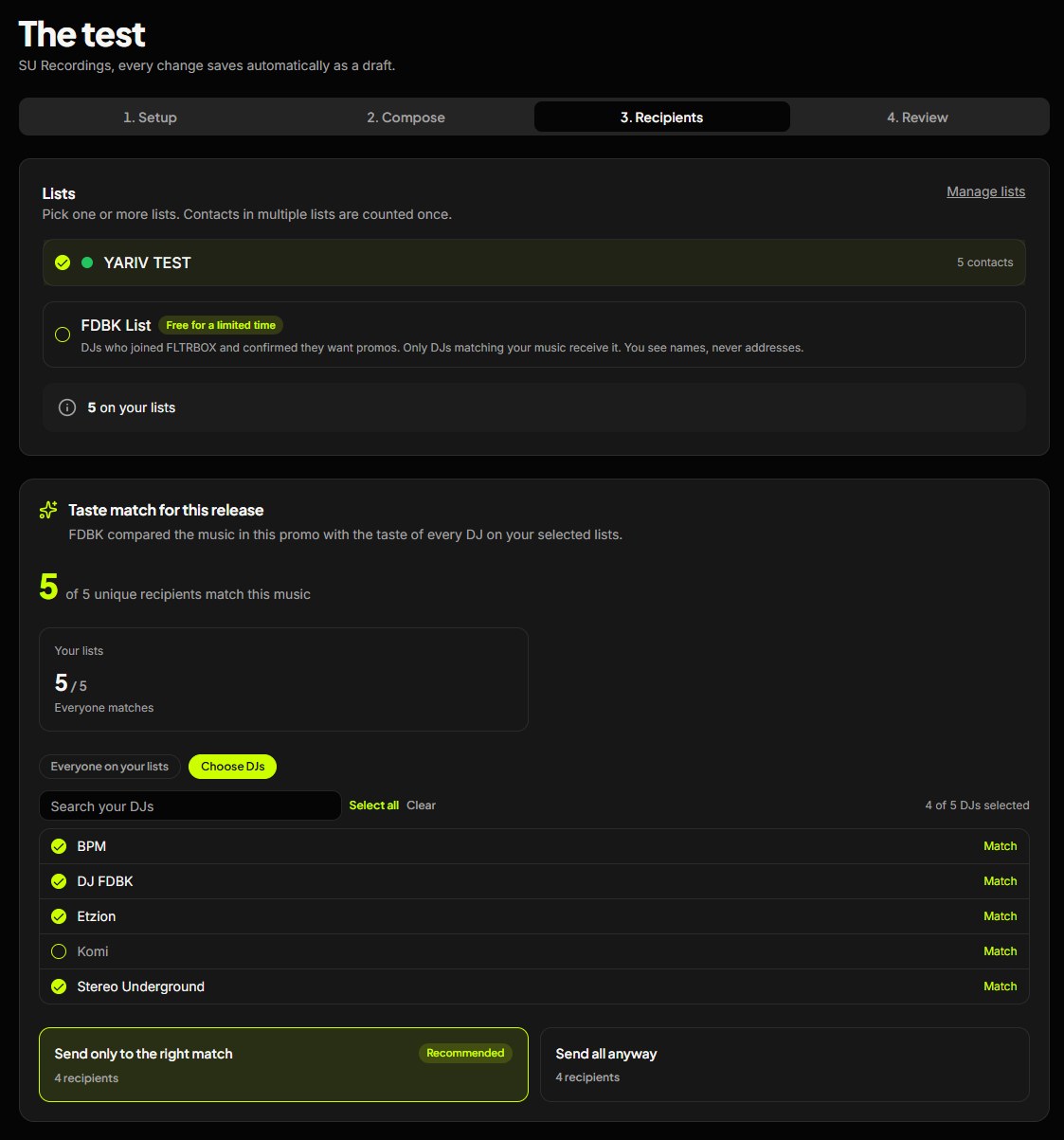
Pick your own lists and, optionally, the curated FDBK List. FDBK List DJs are matched by genre and taste (strong match 90+, positive match 80+). Use Choose DJs to hand-pick. If a contact is on both, the FDBK List entry is used. Anyone who opted out of your label is excluded.
- 5
Review and send
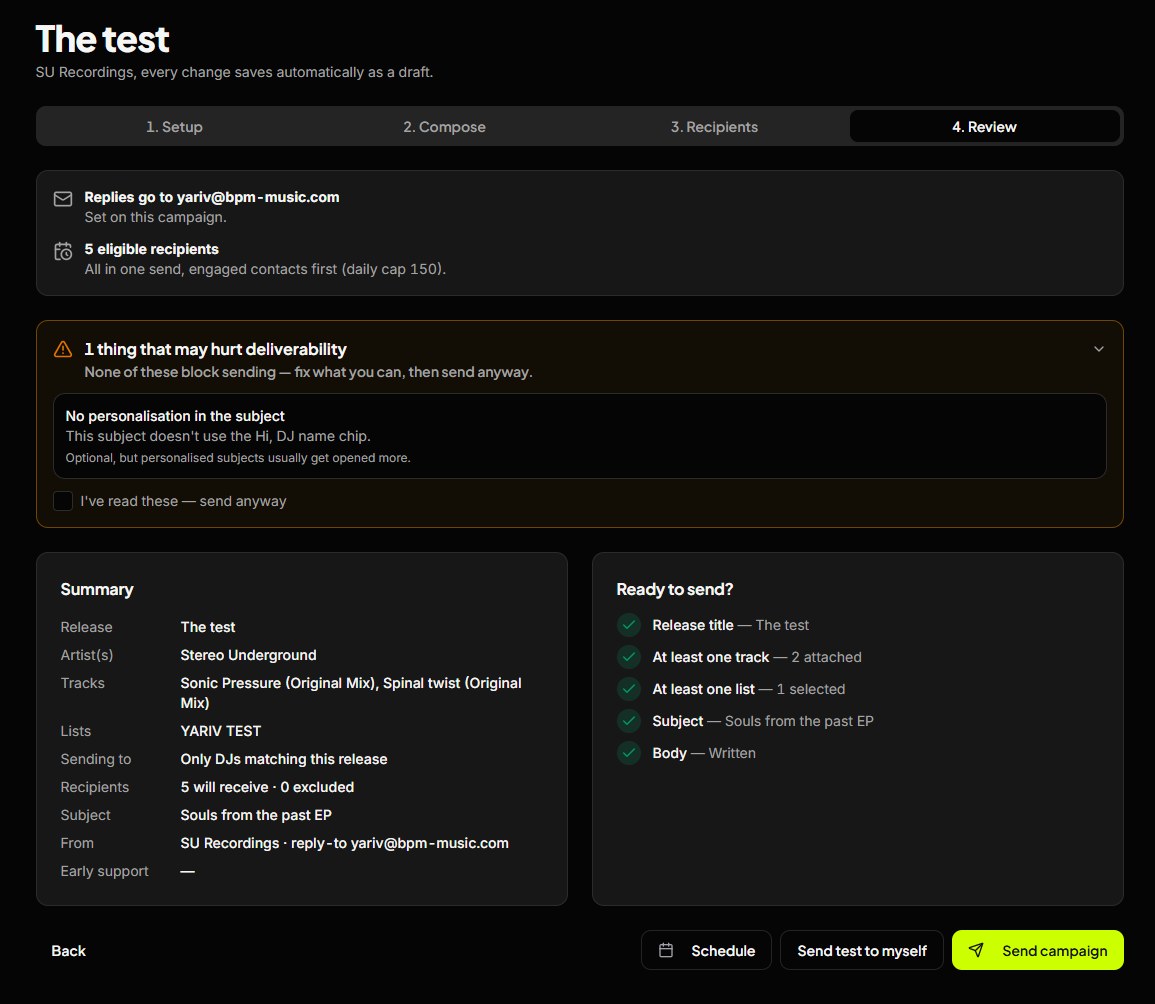
Check the summary, deliverability and the Ready to send checklist, then send now or schedule. Download archives are prepared in the background so the first DJ never waits.
 1122345
 4
 53
Part 6 · FDBK
Campaign report
Live results for every promo, updated as DJs listen and respond.
- 1
Headline KPIs
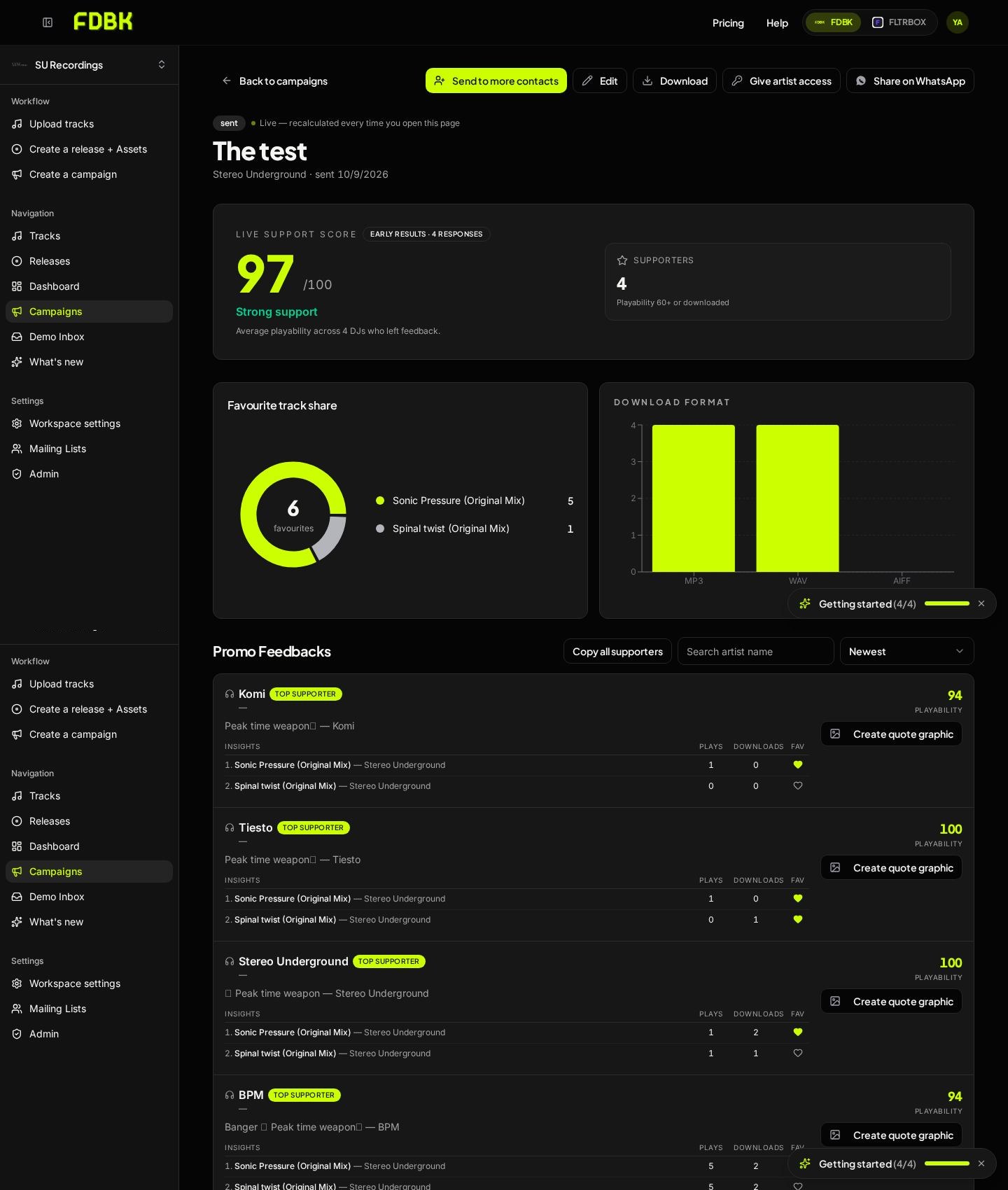
Live support score from 0 to 100, number of supporters, favourite track share and download formats.
- 2
Playability score
Each DJ scores the release from 0 to 100. Supporter means 70 to 89, Top supporter means 90 and above. Not for me never counts as support.
- 3
Supporter lists
Expand the list and use Copy all supporters to paste names straight into a social post. Create quote graphic turns any comment into a branded image.
- 4
Funnel and follow up
Sent, delivered, opened, played, downloaded and feedback. Auto reminders go to non-openers after 7 and 14 days. Send to more contacts adds new recipients, including the FDBK List.
- 5
Activity log
A collapsible timeline of every open, play, download and feedback. Click to open it, filter by event type.
- 6
PDF and artist access
Download a branded black PDF with your label name. Give artist access shares the full report with the artist.
- 7
Post-release performance
From the release date, Songstats tracks Beatport charts and Spotify playlists. Tracking lasts 4 weeks on the free first campaign, 12 on Boutique, 16 on Label Group and 24 on Enterprise.
 1233455
Part 7 · FDBK
Demo inbox
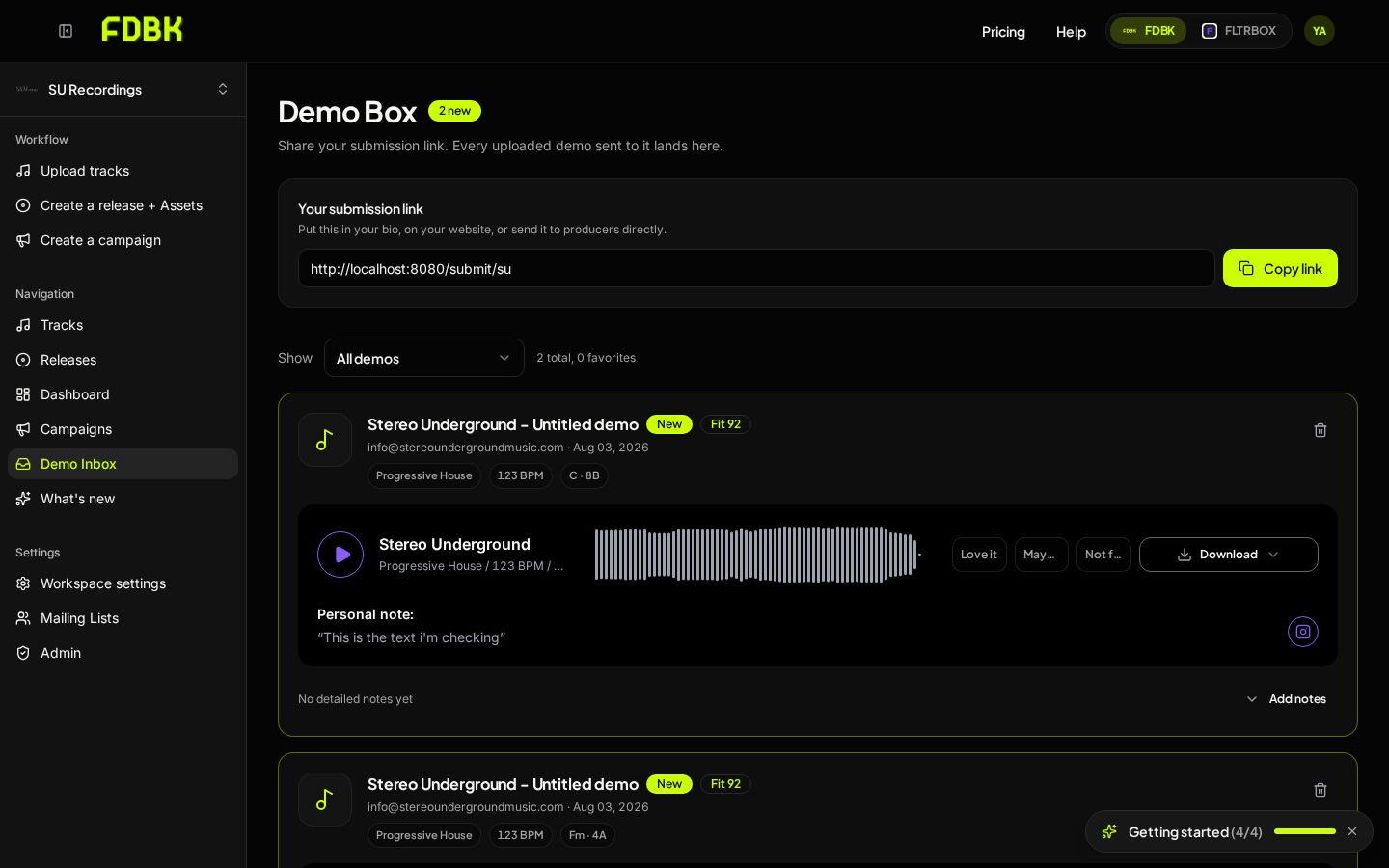
Receive demos from producers through your own submission link.
- 1
Submission link
Copy your link and put it in your bio, website or socials. Every demo lands in Demo Box.
- 2
Listen and respond
Play each demo, read the producer's note and mark Love it, Maybe or Not for me. Download when you want to keep it.
- 3
Auto emails
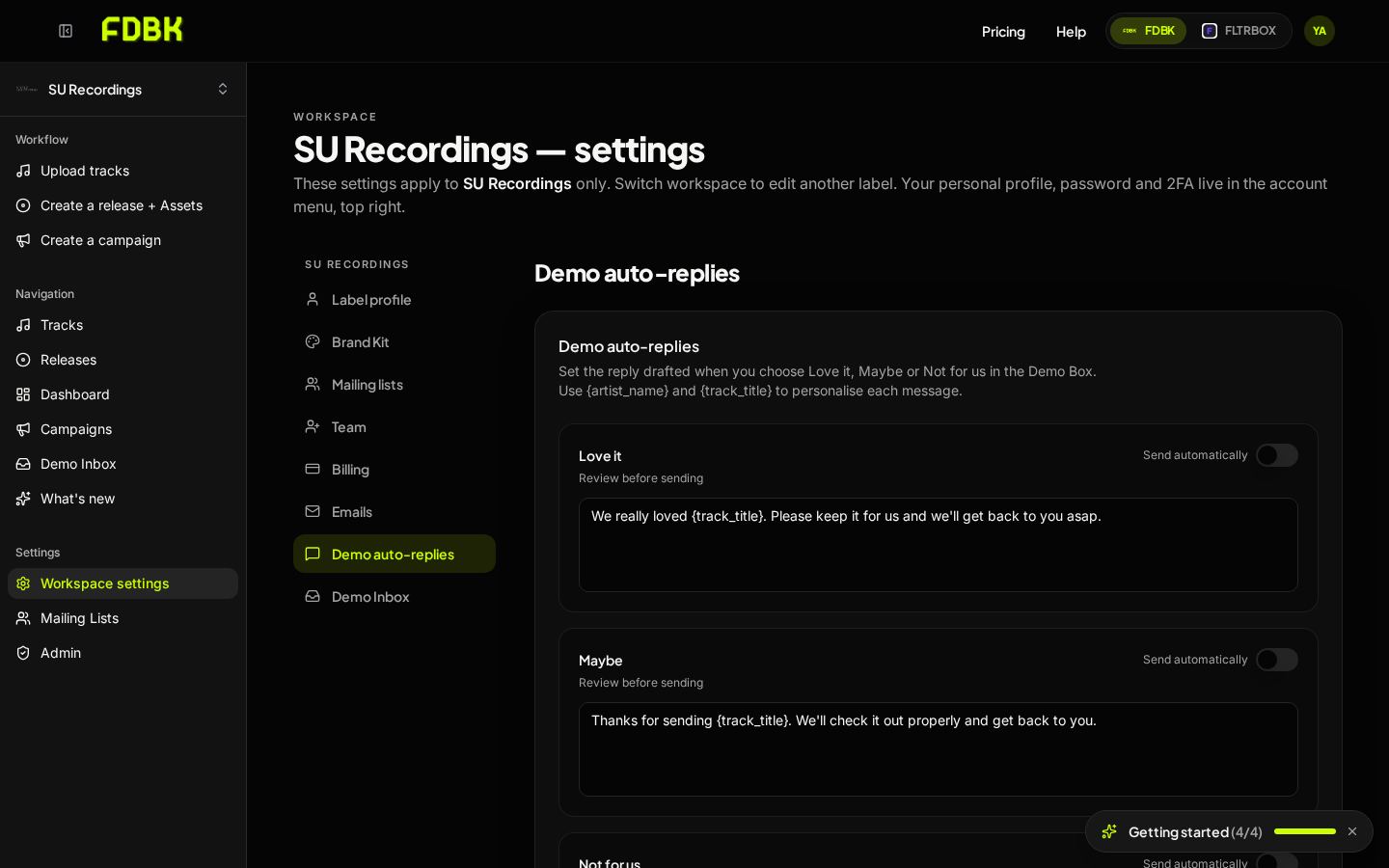
In Workspace settings, Demo auto-replies, write a reply for each choice. Switch Send automatically on to reply instantly, or leave it off to review first. Use {artist_name} and {track_title} to personalise.
 12
 3
Part 8 · FLTRBOX
FLTRBOX promo page
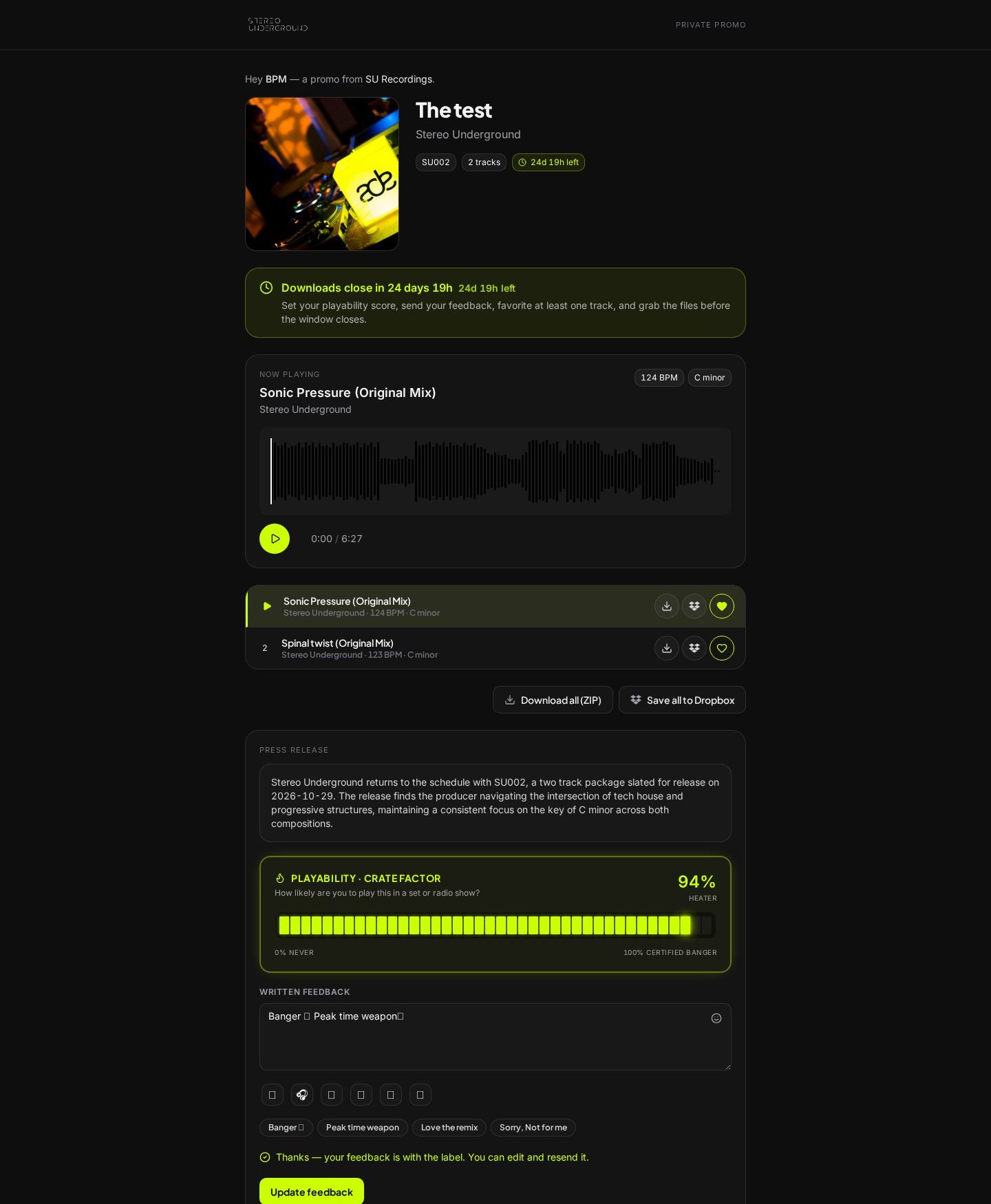
What a DJ sees when they open a promo. Every link is private to one recipient.
- 1
Private link
Each DJ gets a unique, revocable link. Audio streams through short-lived signed links and masters stay encrypted in private storage.
- 2
Listen
Tracks start at the snippet set by the label. DJs can seek and switch tracks freely.
- 3
Playability score
The fader is mandatory: How likely are you to play this in a set or radio show? from 0 to 100.
- 4
Written feedback
A short comment is required. Quick chips like Banger or Peak time weapon help.
- 5
Unlocked downloads
After feedback, DJs download WAV, AIFF or MP3 with full tags and artwork, or Download all (ZIP), until the window closes.
 12345
Part 9 · FLTRBOX
DJ inbox, Taste and subscriptions
Keep your promos together, shape your taste profile and choose which labels you hear from.
- 1
Promo Box
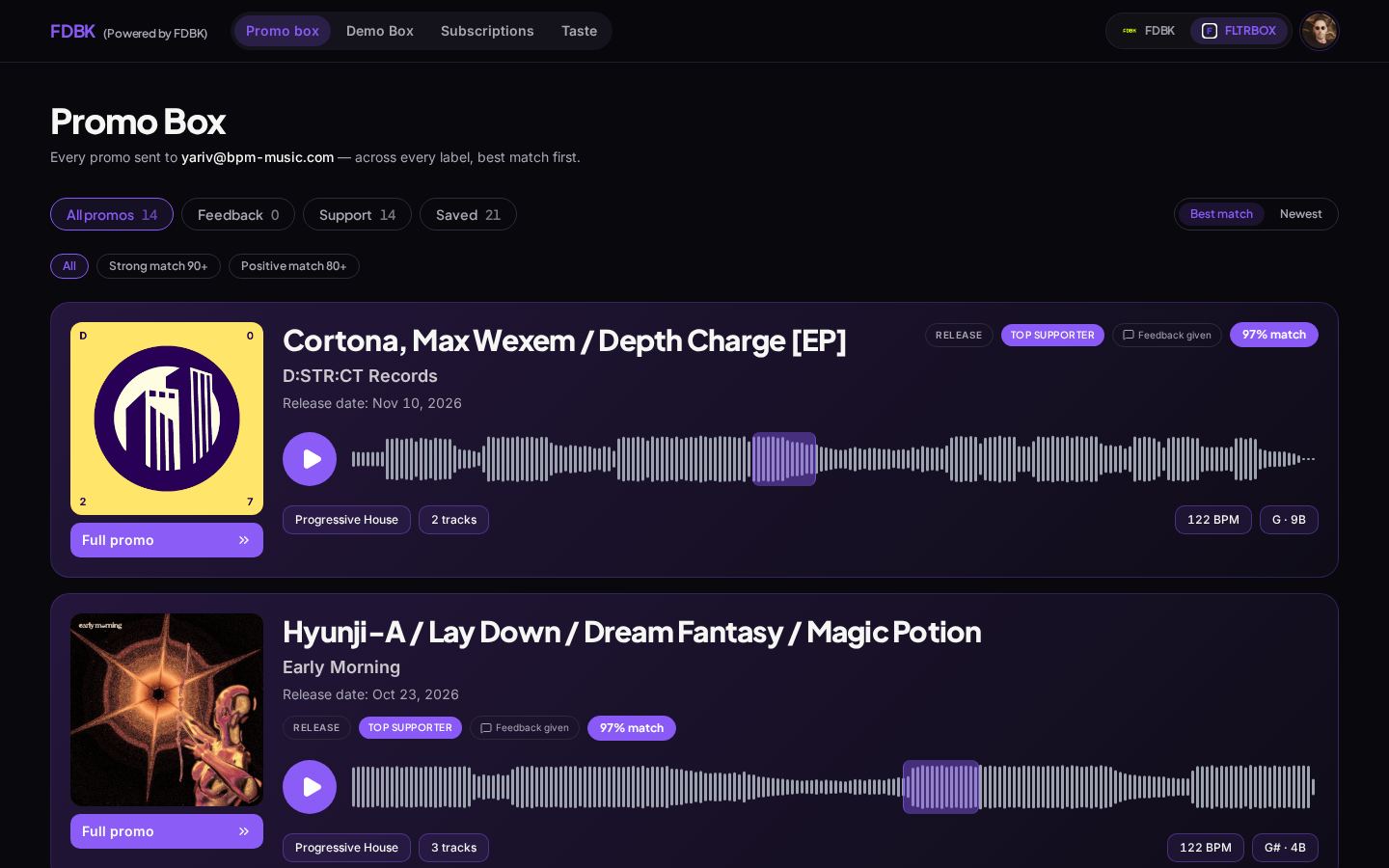
Every promo sent to the DJ's email, from every label, ranked by best match. Filters for strong match 90+ and positive match 80+, feedback given and saved.
- 2
Open Taste
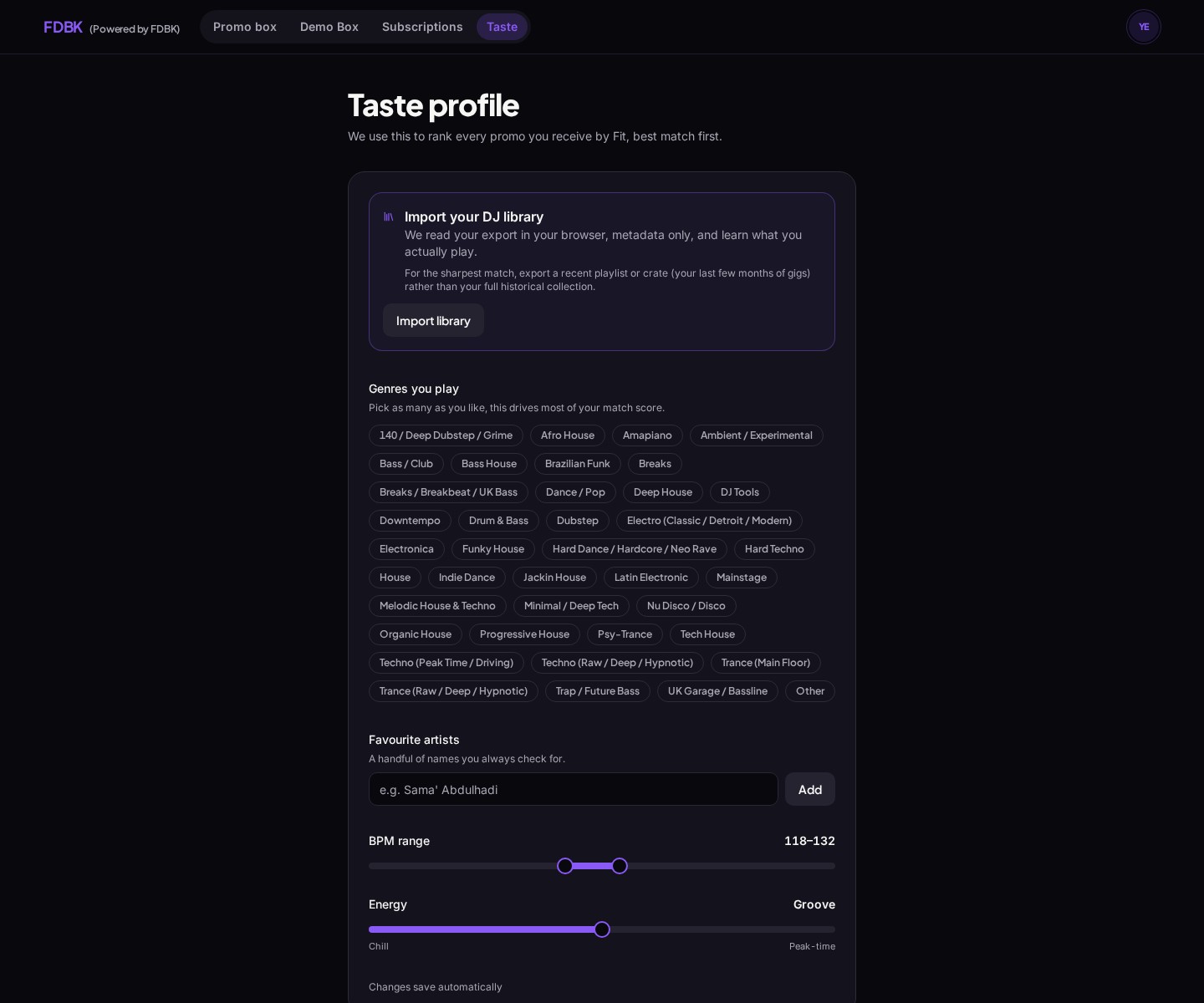
Sign in to FLTRBOX and choose Taste in the top navigation, or Taste profile in your account menu. This profile helps rank the promos in your inbox by Fit.
- 3
Set your preferences
Select the genres you play. Under Favourite artists, type a name and press Add; remove a name with its cross. Adjust the BPM range and Energy sliders from Chill to Peak-time. Changes save automatically, so wait for the save indicator before leaving.
- 4
Export from rekordbox
For a recent playlist, right-click it in rekordbox, choose Export a playlist to a file, then the TXT option. For your full collection, choose File > Export Collection in xml format and save the XML file. Menu wording can vary by version. Export a file to your computer, not a USB device export.
- 5
Export from Traktor
Right-click a playlist in Traktor's Browser Tree and choose Export Playlist. Select NML as the format and leave Copy Tracks off: audio files are not needed. For the full library, right-click Track Collection and choose Export the Collection. Save the NML file to your computer.
- 6
Import your library or playlist
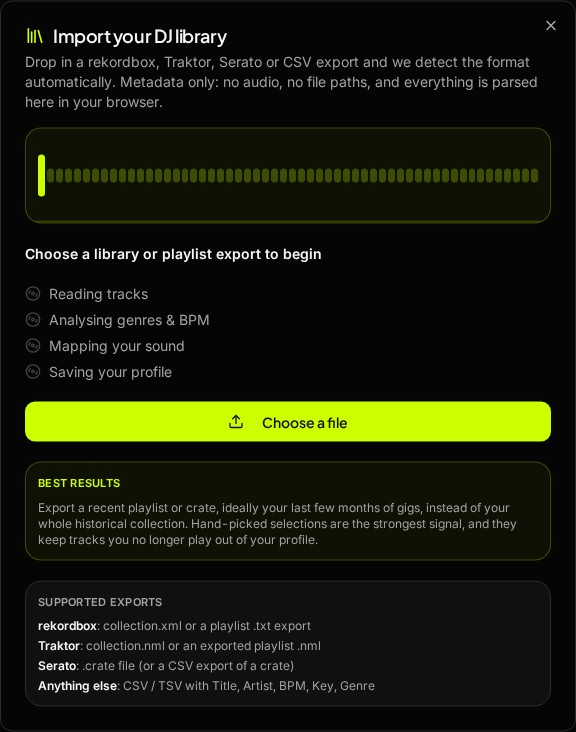
On Taste, press Import library (or Re-import library), then Choose a file. Select your rekordbox XML or TXT, Traktor NML, Serato crate, or CSV/TSV export with Title, Artist, BPM, Key and Genre columns. The format is detected automatically. Use a recent playlist or crate for the most relevant picture of what you play now.
- 7
Read the import results
The window moves through Reading tracks, Analysing genres & BPM, Mapping your sound and Saving your profile. When saving succeeds, the summary shows tracks read, played and cued, top genres, typical BPM, favourite keys and artists. Full libraries are weighted by plays and cue points; playlist inclusion is a strong signal. Imports blend into your existing profile rather than erase earlier preferences. Only metadata is saved, not audio or file paths; parsing happens in your browser.
- 8
Unsubscribe from one label
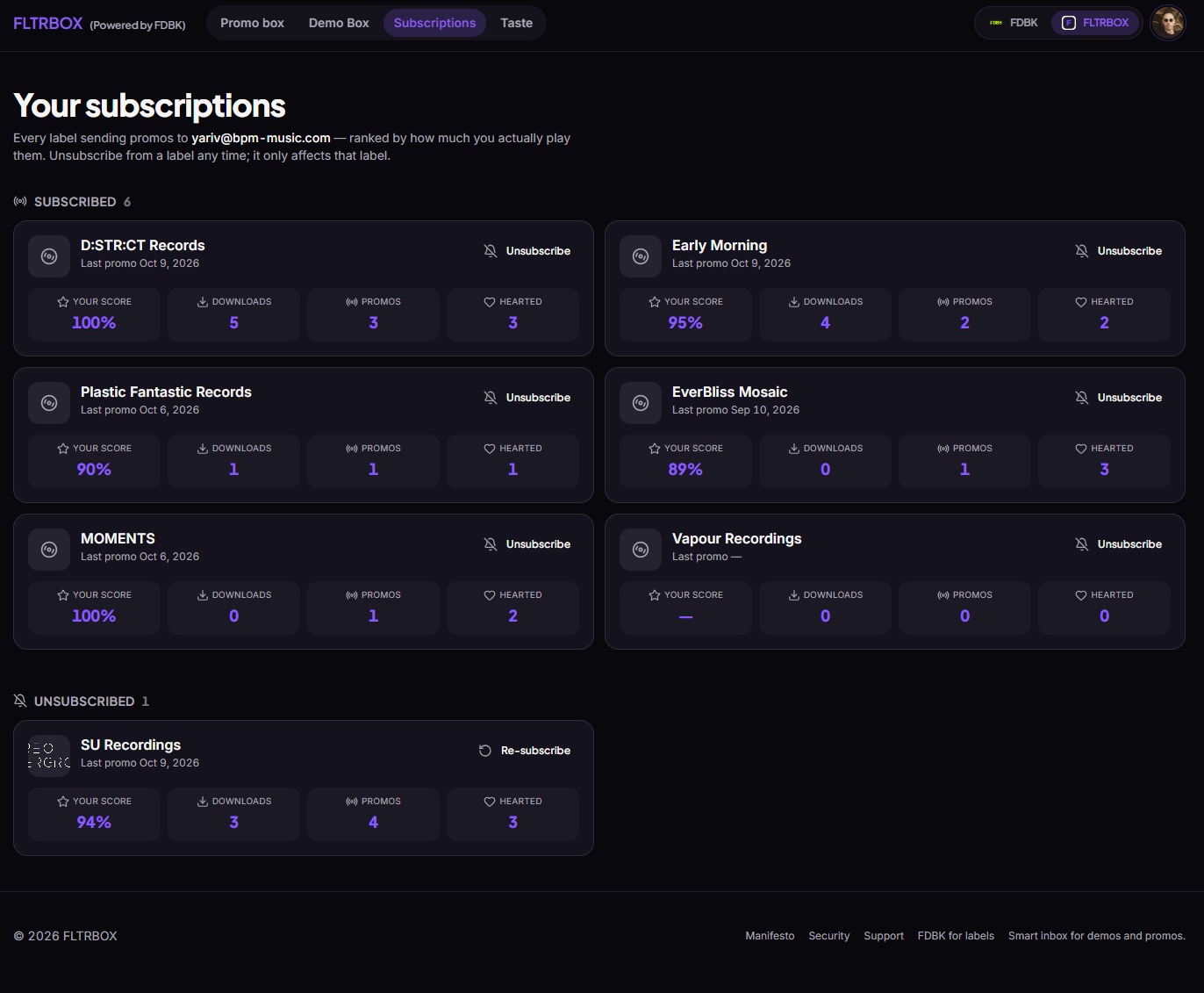
Open Subscriptions in FLTRBOX. Under Subscribed, find the label and press Unsubscribe on its card. This stops promos from that label only, leaving other label subscriptions unchanged. Labels you rarely engage with are suggestions, not automatic opt-outs. If no labels appear, there is nothing to unsubscribe from yet.
- 9
Re-subscribe
On the same Subscriptions page, find the label under Unsubscribed and press Re-subscribe to receive its promos again. Each label's card also shows your score, downloads, received promos and hearted tracks, helping you decide what to keep.
- 10
Dropbox sync
Press Connect Dropbox on Profile, or on the card in your Promo Box, and approve access. We can only use one folder: Apps/FLTRBOX Sync. Pick WAV, AIFF or MP3 on Profile. After you leave feedback, the promo lands in its own {Artist} - {Release} folder with cover.jpg, ready for Rekordbox or Serato. Each file counts once as a download for the label. Disconnect anytime on Profile; that removes our access.
Tip: Use a metadata export, not your audio files or the DJ software's database file. If the import fails or finds no tracks, check the export format and try again. The public Smart Link example is now in Part 4, beside its editor.
 11
 2336
 67
 89
Part 10 · FDBK
Wallet, credits and billing
Workspaces are free. You only pay for campaigns.
- 1
How credits work
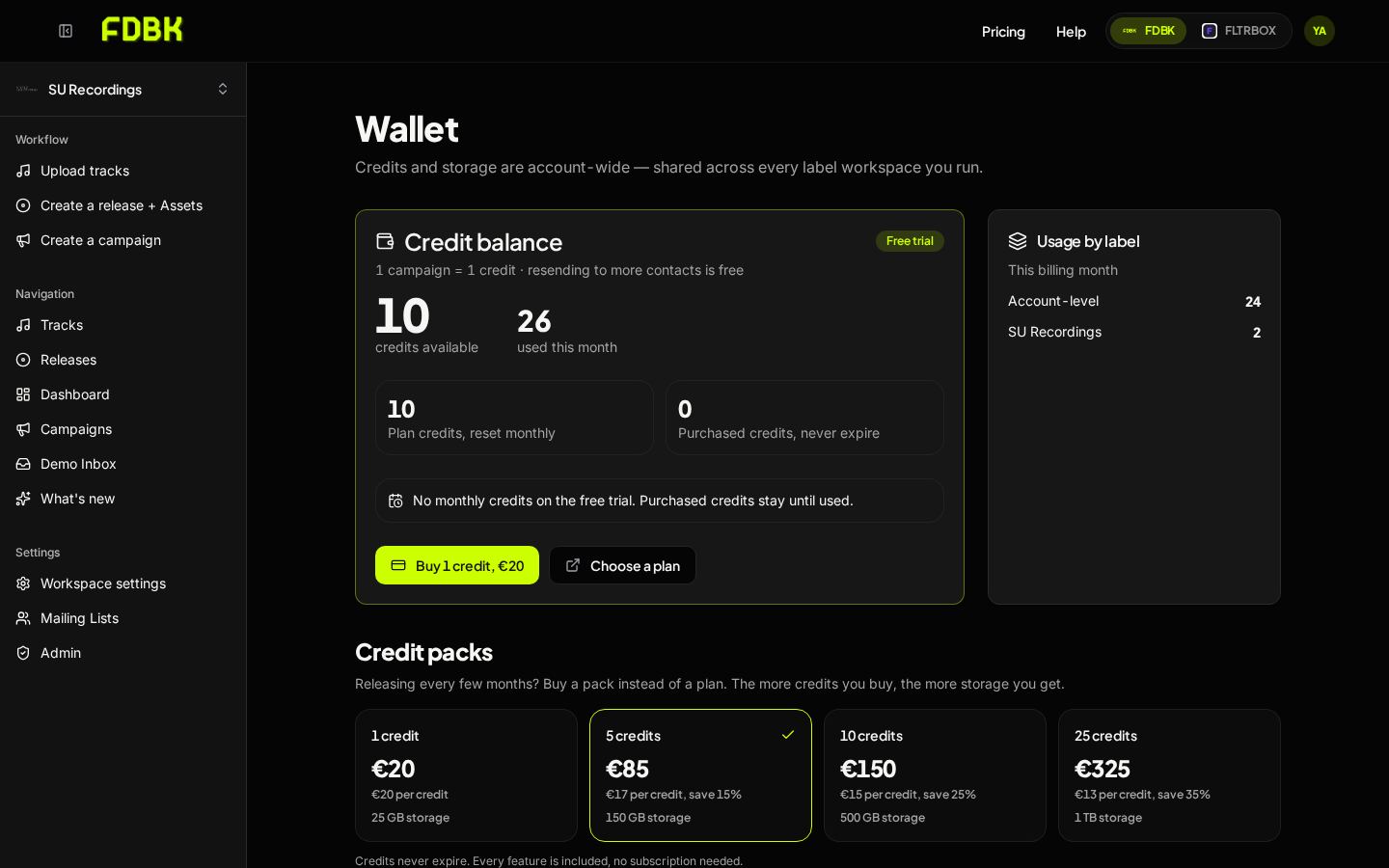
One campaign uses one credit. Credits and storage are shared across every workspace in your account.
- 2
Credit packs
Buy 1, 5, 10 or 25 credits instead of a plan. Bigger packs cost less per credit and add more storage. Purchased credits never expire.
- 3
Plans
Boutique, Label Group and Enterprise add monthly credits. Every feature works on every plan, including the free first campaign.
- 4
Billing
See your current plan and usage, upgrade, manage or cancel.
 123
Part 11 · Both
Account settings
Personal settings for you, the same for every workspace.
- 1
My profile
Photo, first name and surname.
- 2
Password and email
Change your login email (confirmed from the new inbox) and set or update your password.
- 3
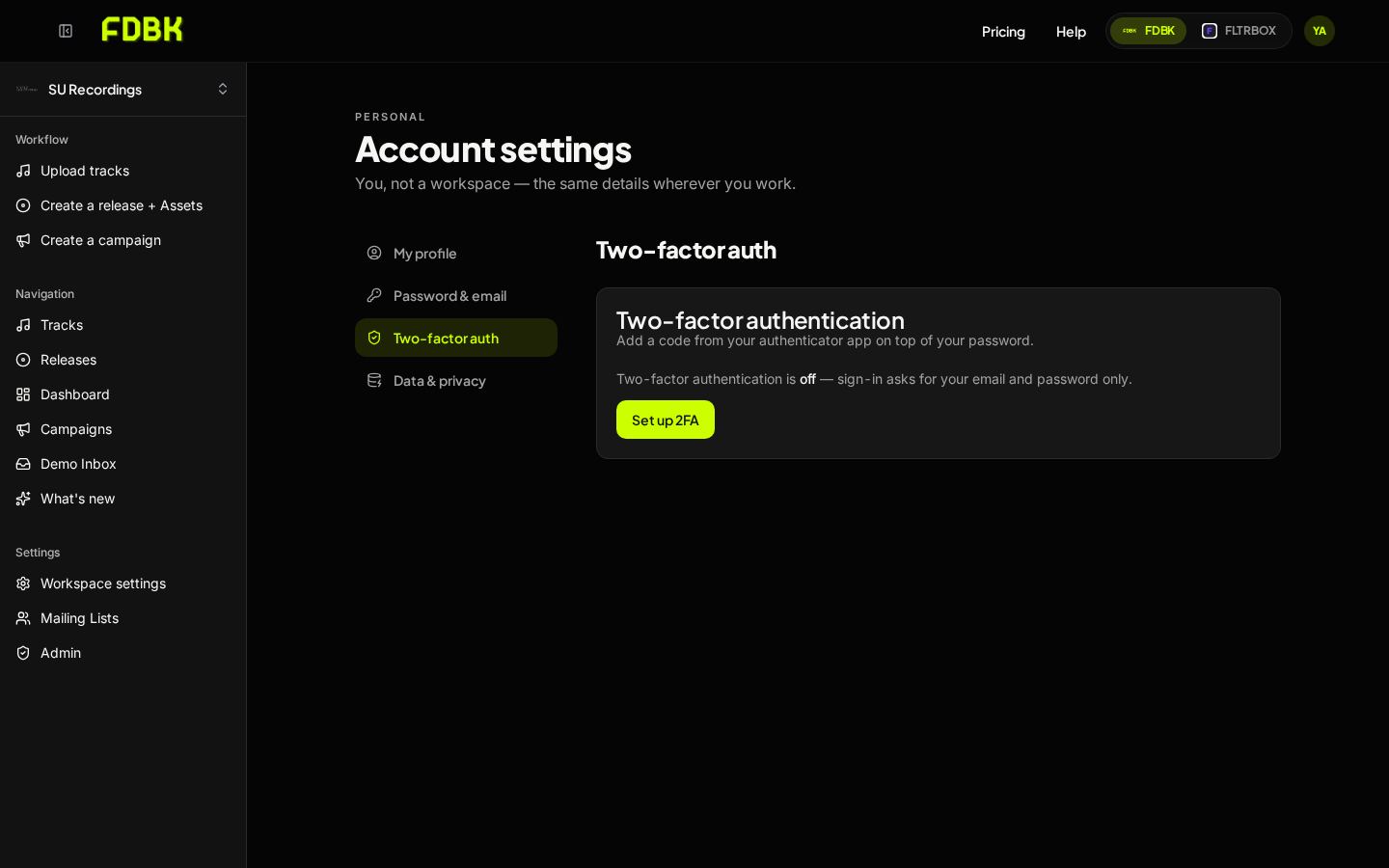
Two-factor authentication
Press Set up 2FA and scan the code with an authenticator app. After that you'll need a code at every sign-in.
 1233
Still stuck? Ask us in the Help center.